OpenPokerLab • Poker Notes v2.0 • Portable Windows app
Player notes that never steal focus
Poker Notes is a fast, portable notes app for poker. Write a read on any opponent while you play,
tag it in your own colours and find it again in a single keystroke. Autosave, aliases, note history
and CSV export are built in, and the optional hover boxes read the seat names off your tables with
OCR and show your own notes right there — without ever stealing focus. 100% local, 100% TOS safe.
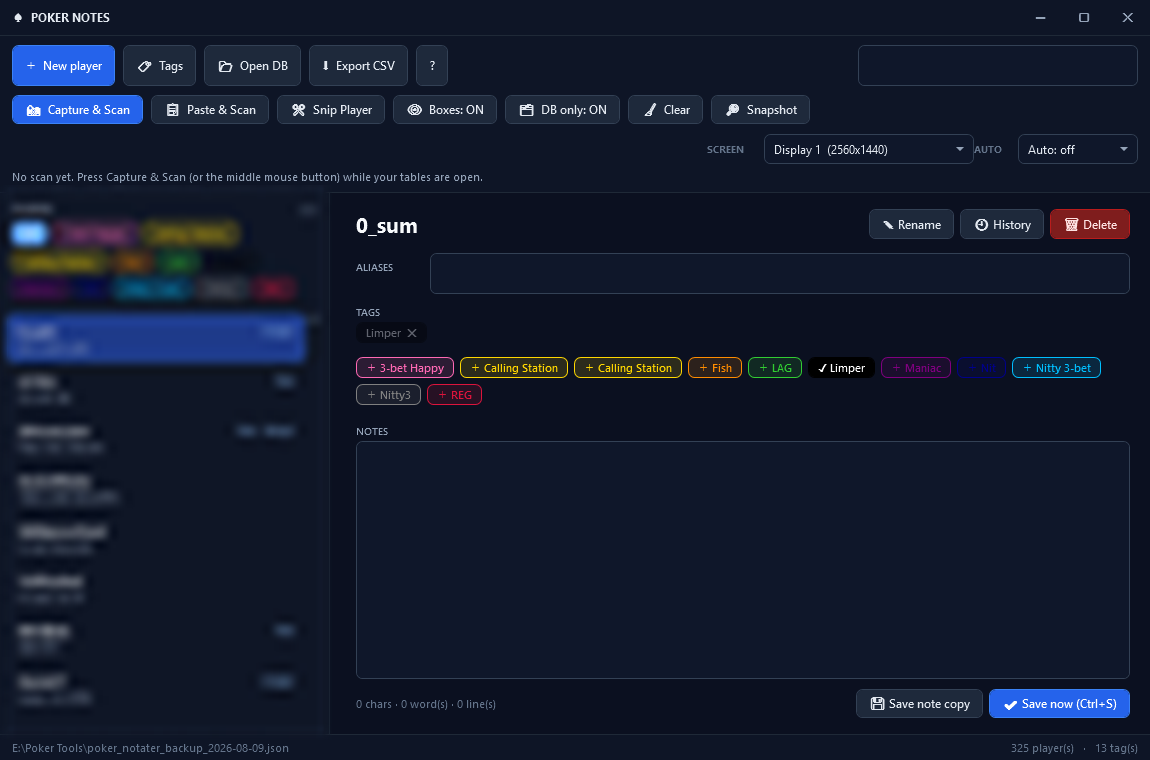
Display 1 (2560x1440) · Screen · Boxes: ON · DB only: ON · AUTO: offportable · v2.0.0 · no installer · no network calls
That is the whole program: one player list, one tags row, one notes field and a single row of buttons for the optional Capture & OCR overlay. No stat columns, no timers, no charts - and the status strip at the bottom is the only thing that ever updates by itself. (Nicknames and aliases in the list are blurred for privacy; the tags and notes are the real thing.)
What is inside
Everything you need to keep your reads
Write, tag, search and reuse your reads on hundreds of opponents - in one self-contained app that stays out of the way while you play.
⚡
Focus-first editor
Type and stay typing. Your note saves itself about a second after the last keystroke - and the app never steals focus, never moves a window and never interrupts your play.
🏷
Tags in your own colours
Create tags with a hex colour, tag players with one click, filter the player list by tag - and let the same colours frame the hover boxes on the table.
🔎
Aliases & instant search
Store every nick a player uses in one record. Ctrl+F searches the name, the aliases and the note text, so a read you wrote months ago is one keystroke away.
🗂
Note history & CSV export
Ctrl+E snapshots the current note with a timestamp (up to 40 per player) and loads any copy back into the editor. One click exports everything to Excel-ready CSV.
📸
Capture & hover boxes
Middle mouse button or one button press: the app finds your tables, reads the seat names with OCR and places a click-through box on every seat. Green = player in database, grey ? = new name.
🛡
Portable and private
One self-contained EXE, one plain JSON database, atomic saves and a .bak before every write. No installer, no admin rights, no network calls, no memory reading.
Documentation
The complete user guide
Five short chapters covering everything from the first launch to the OCR hover boxes, your data files and every keyboard shortcut.
Zero setup: taking notes in 60 seconds
Poker Notes is a 100% self-contained portable application. There is no installer, no .NET runtime to download, no Python environment, no SQL server and no account to create.
1
Unzip the portable package
Extract it anywhere - Desktop, a second drive or your poker tools folder. Keep Tesseract.dll, the tessdata\ folder and the x64\ DLLs next to the EXE; they are only used by the optional Capture & OCR features.
2
Run the app
Double-click the EXE you just unzipped. The app opens the database you used last; the path is remembered in %AppData%\PokerNoteManager_Settings.txt, so you only ever point it at your file once.
3
Write the note and keep playing
Pick a player in the left column - or press + New player (Ctrl+N) and type the name exactly as the client shows it. The note saves itself about a second after you stop typing; saved HH:MM:SS next to the name confirms it.
💡 Pro-tip for multi-tablers
Set AUTO to 30 s or 1 min and the hover boxes follow players who come and go. Boxes you removed yourself stay removed.
%AppData%\PokerNoteManager_Settings.txt
Write it, tag it, find it again
The editor is the whole workflow: one player record with tags, aliases, the note and its history. Nothing is ever written behind your back.
✓
Autosave & Ctrl+S: the note is saved about 1.2 seconds after your last keystroke, and only when something actually changed. Ctrl+S forces a save. Before every write the previous file is copied to <your-db>.json.bak.
✓
Tag chips: click a chip to add or remove a tag (filled = the player has it). 🏷 Tags opens the tag manager where you create tags and give each one a hex colour such as #FF8C00. Deleting a tag removes it from every player, after a warning.
✓
Filters & search: every tag also appears as a filter chip under PLAYERS. Ctrl+F jumps to the search box, which matches the player name, the aliases and the note text.
✓
Rename & delete:F2 renames the selected player - notes, tags, aliases and history follow. Delete asks first, and a .bak is always written before the change.
🏷 Where your colours live
Tags and their colours are stored in a small JSON file next to your settings, so your colour scheme survives a database switch and every tag keeps its own swatch.
%AppData%\PokerNoteManager_Tags.json
Read the table, show the note
Screen reading is back in this release - rebuilt so it can never disturb your tables. There is no background scanning at all: images are only captured when you press the button.
✓
Pick the screen: the 📺 SCREEN selector at the top right chooses the monitor to look at (the choice is remembered). When you capture with the mouse, the screen under the cursor wins - handy when you run several tables.
✓
Capture & Scan: press 📸 Capture & Scan or the middle mouse button. Every window on that screen is checked for a green felt (browsers and lobbies are skipped, and a table without felt is judged by its window title), the seat names are read with OCR and one hover box is placed per seat. The status bar reports how many tables and names were found.
✓
Green box vs. grey box: a green box means the player is in your database - hover it and your tags and note appear in a card next to the mouse. A grey dashed box with a ? means the name was read but is not in the database yet.
✓
Ctrl+click to edit on the table: opens the note editor right there. Write, toggle tags with a click and save with the button or Ctrl+Enter. New names are created automatically and the previous version of the note is copied into the history. Esc or a click outside closes it. A normal click always goes through to the poker client, and right-click is never used (it folds on Unibet).
✓
Optional extras:🗂 DB only: ON ignores names that are not in the database, tag colours frame the boxes, 👁 Boxes: ON/OFF hides the overlay, 🧹 Clear wipes it, 📋 Paste & Scan reads a screenshot from the clipboard and ✂️ Snip Player reads the name under the mouse.
🔍 Did OCR read the name wrong?
Use Ctrl+click or ✂️ Snip Player to correct the name once - afterwards the name matches reliably. Matching is tolerant of the classic OCR mix-ups (1/l/I, 0/O, 5/S, 8/B, 3/E) with a distance-based fallback, and the debug log lists every reading.
Tesseract.dll + tessdata\eng.traineddata + x64\
One player, many nicks, one place
Opponents rename themselves weekly. Aliases keep every nick attached to the same note instead of splitting your reads in two.
✓
Aliases: list the other nicks of a player separated by commas. Search matches aliases too, and the on-table note editor follows the same record.
✓
Note history:Save note copy (Ctrl+E) stores a timestamped copy of the current note. History lists them - pick one and press Load into editor, or Clear history to delete them. Up to 40 copies per player.
✓
CSV export:Export CSV writes one row per player with aliases, tags, the full note text and the number of history copies - semicolon separated with a UTF-8 BOM, so Excel opens it without any import dialog.
✓
Same player on two tables: every hover box belongs to its own table. The note is shared, but a box you remove with Ctrl+click disappears only on that table. The hover card shows e.g. ruhhy · at 2 tables and the status bar counts them.
🗂 Good notes beat more notes
Write one careful line per read - "calls down light", "min-raises nut draws", "folds to turn barrels" - and let tags do the sorting. The hover card shows the tags first and the note right after, so a read you wrote in June is still useful in December.
Export CSV · players.csv
Your data, and where it lives
Everything is plain text and fully yours - no cloud, no account, no telemetry. Copy the database file to a USB stick and your notes travel with you.
✓
The database: one plain JSON file (version 1: players, tags, notes, note_history, aliases). Point the app anywhere with Open DB, copy the file to a USB stick and your reads travel with you.
✓
Safe saving: writes go to a temporary file that is then swapped in, and the previous version is kept as <your-db>.json.bak next to the database. Only one instance of the app runs at a time, so two copies can never overwrite each other.
✓
Settings & log:PokerNoteManager_Settings.txt (last database), PokerNoteManager_Tags.json (tags + colours) and PokerNotes_Window.txt (window size) live in %AppData%. The log pokervision_debug.log (in %LocalAppData%) rotates at 2 MB and opens straight from the ? menu.
Keyboard shortcuts
Ctrl+N - new player
Ctrl+F - search name, alias or note
Ctrl+S - save now
Ctrl+E - save a note copy to history
F2 - rename the selected player
Esc - close dialog / clear search
Middle mouse - Capture & Scan
Ctrl+click box - note editor on the table
Ctrl+Enter - save in the on-table editor
🧪 Power-user self tests
The app ships with its own diagnostics. Start it with a switch and the answer is written to a text file in the log folder - the UI and screen tests also save PNGs in debug_snapshots, ready to send along if something looks off.
Classic trackers get flagged because they read or modify the memory of the poker client. Poker Notes never touches the client: it stores the text you write, and the optional capture only looks at a screenshot you asked for.
Security criterion
Traditional poker HUDs
Poker Notes (OpenPokerLab)
Memory reading (process hooks)
❌ Reads client RAM memory
✓ 0% memory reading - only your own notes
DLL injection / code modification
❌ Injects hooks into the poker client
✓ Zero code injection, no process access
Background scanning on a timer
⚠️ Polls the tables every 1-2 seconds
✓ No timers - capture only when you press it
Focus & input automation
⚠️ Can activate windows and click for you
✓ Click-through overlay that cannot take focus
Real-time assistance (RTA)
⚠️ Live solver output and strategy hints
✓ Only the plain text you wrote yourself
Privacy & data ownership
⚠️ Uploads hands and stats to cloud servers
✓ 100% local JSON file, zero network calls
Third-party tool policies differ from room to room - always check the current rules of the poker room you play on. Poker Notes is a manual note organizer: it never plays, clicks or decides for you.
Got Questions?
Frequently Asked Questions
Does Poker Notes show VPIP / PFR or any other stats?▼
No - Poker Notes is a notes app, not a stat engine. It keeps the reads you write: free-text notes, colour-coded tags, aliases and a timestamped history per player, plus CSV export when you want a spreadsheet. Nothing to calibrate, nothing that can drift, and nothing that has to be right to the last decimal - only your own words.
Do I need .NET, Python or an installer - and which rooms work?▼
Nothing to install: the package is a self-contained portable EXE, runs without admin rights and needs no runtime, database server or account. It works with any client that draws the player names at the table - the window check simply skips browsers and lobbies that have no green felt. Just remember to keep Tesseract.dll, the tessdata\ folder and the x64\ DLLs next to the EXE if you want the optional Capture & OCR features.
Can it disturb my typing or my table while I play?▼
No. There are no timers that create, activate or move windows, the hover overlay is click-through (WS_EX_TRANSPARENT) and can never take focus (WS_EX_NOACTIVATE), so every click lands in the poker client. The only background activity is the deferred save, which runs about 1.2 seconds after your last keystroke and only if something actually changed.
Where does my player database live?▼
In a single plain .json file that you pick yourself with Open DB - players, tags, notes, note_history and aliases in one readable file. A .bak copy of the file is written before every save, so a bad edit can never cost you more than the last change you made.
Can I share or move my player database?▼
Yes - it is a single plain .json file. Send it to a friend, drop it in Dropbox or open it with 📂 Open DB and keep several databases side by side. Prefer a spreadsheet? Export CSV writes every player with aliases, tags, notes and history count in an Excel-ready format.
What if the OCR reads a name wrong?▼
Fix it once with Ctrl+click on the box or ✂️ Snip Player - after that the name matches reliably. Matching tolerates the classic OCR mix-ups (1/l/I, 0/O, 5/S, 8/B, 3/E) plus a distance-based fallback, and the box turns grey with a ? instead of guessing when a name is unknown. 🔎 Snapshot saves the captured table with the readings, ready to send along if something looks odd.
Is there a version that needs no download at all?▼
Yes - the browser-based Note Manager on this site covers the same idea with tabs, tags and local storage. Poker Notes is the desktop version: faster to reach while you play, with many more players, aliases, history, CSV export and the OCR hover boxes.
Ready to keep your reads where you can find them?
Download Poker Notes v2.0 Portable. Unzip it, point it at your database and start writing notes in under 60 seconds - no installer, no runtime, no account.
📁 Package: portable ZIP - unzip anywhere📦 Size: ~120 MB (self-contained)💻 OS: Windows 10 / 11 (x64)🛡️ No installer · no admin rights · no network calls
Keep Tesseract.dll, the tessdata\ folder and the x64\ DLLs in the same folder as the EXE; they are only used by the optional Capture & OCR features. The download is served from GitHub Releases (release v2.0.0).